Cadre d'installation du disque dur
Qu'est-ce qu'un cadre de montage pour disque dur ?
Vous voulez installer un autre disque dur dans votre ordinateur portable, mais il n'y a plus assez de places libres ? C'est exactement ce à quoi servent les cadres d'installation des disques durs. Ils veillent à ce que le disque dur ne soit pas mal fixé dans l'ordinateur portable. Dans certains cas, un adaptateur est également nécessaire pour connecter le disque dur à la carte mère. Cet adaptateur est également disponible dans notre boutique pour correspondre au cadre d'installation du disque dur et au modèle de votre ordinateur portable.
Les cadres de montage de disques durs les plus vendus
04022-00080000 original Asus adaptateur de disque dur pour 1. baie de disque dur
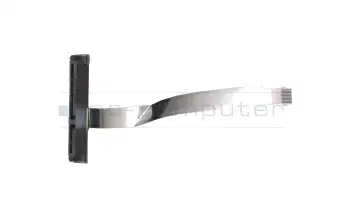
plus frais d'expédition
50.Q7KN2.005 original Acer adaptateur de disque dur pour 1. baie de disque dur
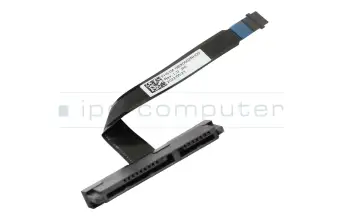
plus frais d'expédition
13NB0SR0L05011 original Asus cadre de montage HDD pour 1. baie de disque dur
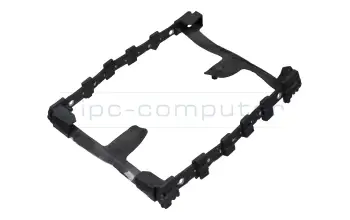
plus frais d'expédition
04022-00060100 original Asus adaptateur de disque dur pour 1. baie de disque dur
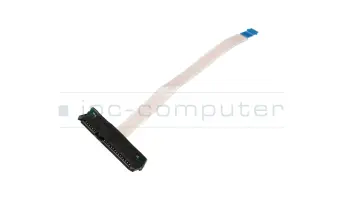
plus frais d'expédition
33.HGLN7.001 original Acer Accessoires de disque dur pour 1. baie de disque dur
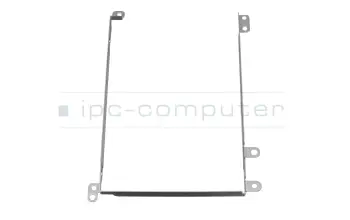
plus frais d'expédition
CP798178-XX original Fujitsu adaptateur de disque dur pour 1. baie de disque dur
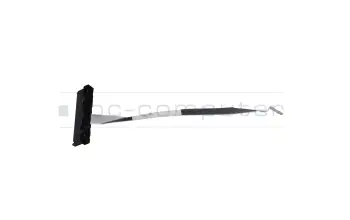
plus frais d'expédition
50.QC2N2.001 original Acer Accessoires de disque dur pour 1. baie de disque dur
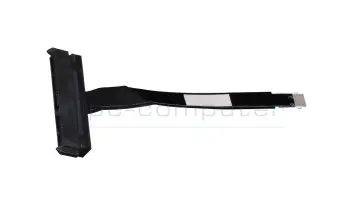
plus frais d'expédition
14010-00217800 original Asus adaptateur de disque dur pour 1. baie de disque dur
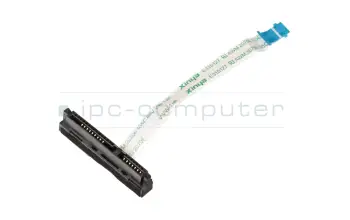
plus frais d'expédition
08701-00111000 original Asus adaptateur de disque dur pour 1. baie de disque dur
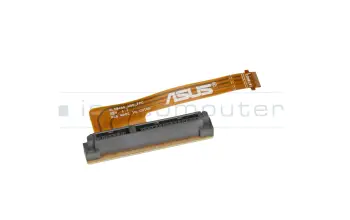
plus frais d'expédition
L51095-001 original HP adaptateur de disque dur pour 2. baie de disque dur
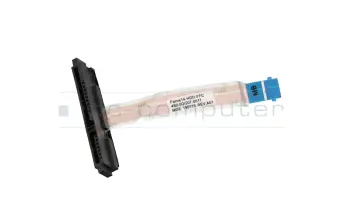
plus frais d'expédition
14020-00260000 original Asus adaptateur de disque dur pour 1. baie de disque dur
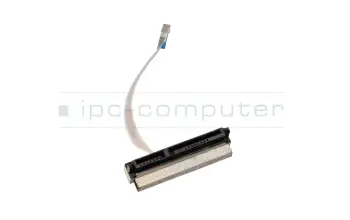
plus frais d'expédition
14010-00218100 original Asus adaptateur de disque dur pour 1. baie de disque dur
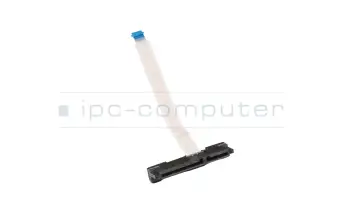
plus frais d'expédition
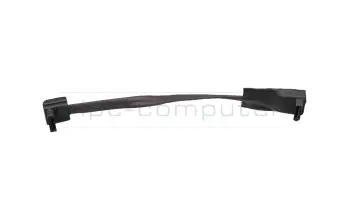
K1D-3008058-V03 original MSI adaptateur de disque dur
plus frais d'expédition
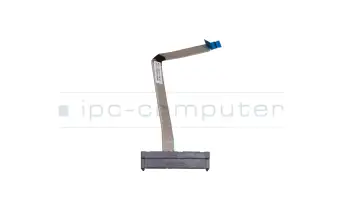
5C10S30212 original Lenovo adaptateur de disque dur pour 1. baie de disque dur
plus frais d'expédition
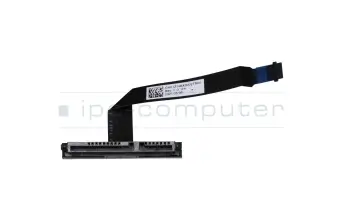
50.QBAN2.004 original Acer adaptateur de disque dur pour 1. baie de disque dur
plus frais d'expédition
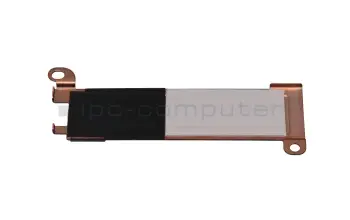
5M11D12329 original Lenovo Accessoires de disque dur
plus frais d'expédition
50.HGLN7.003 original Acer adaptateur de disque dur pour 1. baie de disque dur
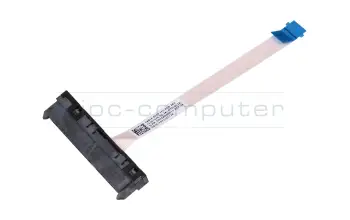
plus frais d'expédition
307-6P10311-HG0 original MSI Accessoires de disque dur pour 1. baie de disque dur
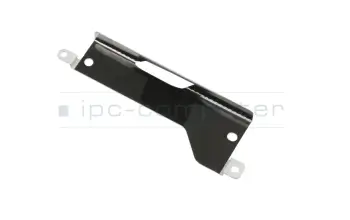
plus frais d'expédition
01HY319 original Lenovo kit d'installation de disque dur pour 1. baie de disque dur
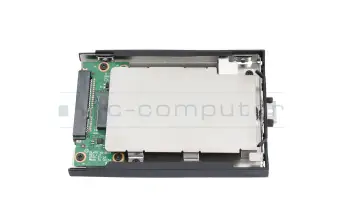
plus frais d'expédition
14010-00212400 original Asus adaptateur de disque dur pour 1. baie de disque dur avec câble plat à 10 broches
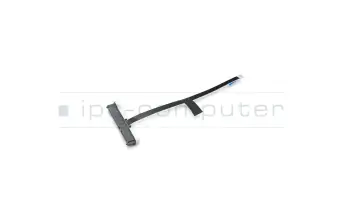
plus frais d'expédition
50.GG2N7.004 original Acer adaptateur de disque dur pour 1. baie de disque dur
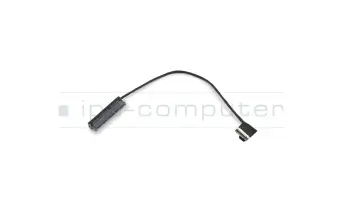
plus frais d'expédition
50.Q28N2.004 original Acer adaptateur de disque dur pour 1. baie de disque dur
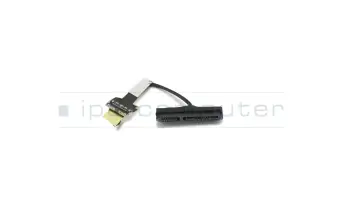
plus frais d'expédition
858260-001 original HP kit d'installation de disque dur pour 1. baie de disque dur (Adaptateur 2,5 pouces vers M.2)
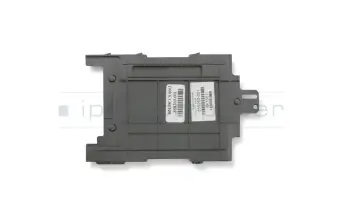
plus frais d'expédition
5C10S29927 original Lenovo adaptateur de disque dur pour 2. baie de disque dur
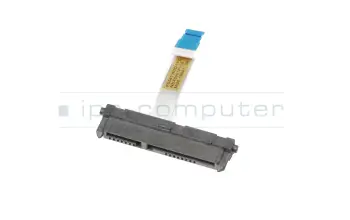
plus frais d'expédition
5C10S29928 original Lenovo adaptateur de disque dur pour 1. baie de disque dur
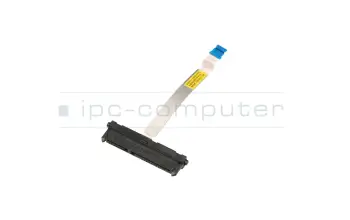
plus frais d'expédition
Trouver les cadres de montage et les adaptateurs appropriés en fonction du modèle ou des caractéristiques
01YW584 Lenovo CABLE ODD_SKU_HDD FFC_WW
plus frais d'expédition
02CW366 Lenovo MECHANICAL HDD bay cover
plus frais d'expédition
02CW375 Lenovo MECH_ASM AVC,M.2 SSD brk2(rubber)
plus frais d'expédition
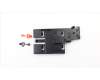
02CW539 Lenovo MECH_ASM M.2 SSD bkt W/HT_EC,AVC
plus frais d'expédition
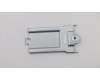
02DL954 Lenovo BRACKET SSD BRACKET Kylo-2
plus frais d'expédition
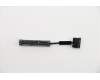
02DM497 Lenovo CABLE FRU CABLE FP530 HD FFC Cable
plus frais d'expédition
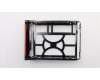
03T8789 Lenovo MECHANICAL HDD HYBRID TRAY ASM
plus frais d'expédition
03T8798 Lenovo FRU, Cable, HDD Easy Swap, SATA/SAS
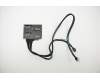
plus frais d'expédition
03T8800 Lenovo FRU, Cable, HDD Power, Manual Plug
plus frais d'expédition
04X2383 Lenovo FRU, CABLE,HDD SATA signal cable, 350mm
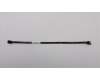
plus frais d'expédition
04X2713 Lenovo FRU,CABLE,SATA signal cable,380mm
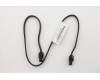
plus frais d'expédition
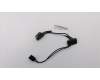
04X2785 Lenovo CABLE Fru,SATA PWRcable(80mm+110mm)
plus frais d'expédition
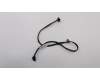
31502005 Lenovo CABLE LS SATA power cable(300mm_300mm)
plus frais d'expédition
54Y9395 Lenovo FRU SATA cable_R_300mm with
plus frais d'expédition
54Y9937 Lenovo Cable -SATA 600mm (RoHS) for ODD / 2st
plus frais d'expédition
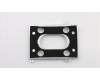
5B40L46216 Lenovo BRACKET HDD BRACKET L80T7 9.5MM W/SPONGE
plus frais d'expédition
5B40S21967 Lenovo BRACKET HDD_BRK Q 81VM
plus frais d'expédition
5B40S21974 Lenovo BRACKET HDD Bracket L 81YK
plus frais d'expédition
5B40S21998 Lenovo BRACKET HDD Bracket L 81Y8
plus frais d'expédition
5B40S22030 Lenovo BRACKET HDD Bracket L 82GL
plus frais d'expédition
Les derniers câbles plats de notre gamme
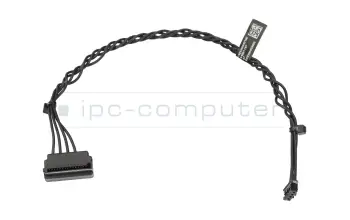
14013-00340100 original Asus adaptateur de disque dur
plus frais d'expédition
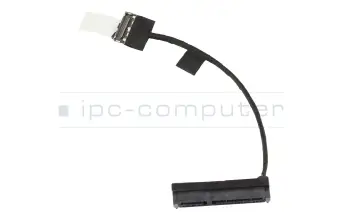
50.GSUN2.002 original Acer adaptateur de disque dur pour 1. baie de disque dur
plus frais d'expédition
Installer un cadre de montage ou un disque dur dans un ordinateur portable ?
L'installation d'un cadre d'installation de disque dur n'est normalement pas un gros effort tant que l'ordinateur portable a une "porte de service". Il faut le visser et le cadre de montage, y compris le disque dur, peut être fixé avec quelques vis. Ces vis sont incluses dans une commande chez IPC-Computer, vous n'avez donc pas besoin d'acheter des vis appropriées au préalable.
Si votre ordinateur portable n'a pas de porte de service, les choses se compliquent un peu, car vous devez dévisser tout l'ordinateur portable pour installer le disque dur.
Cadre du disque dur IPC-Computer
Le châssis du disque dur de l'IPC-Computer est adapté à toute baie de disque SATA, le panneau avant est inclus. La livraison comprend également un tournevis et les deux vis pour fixer le disque dur dans le châssis. Le modèle est disponible en deux hauteurs différentes : 12,7 mm/ 9,5 mm (Extra Slim).
Grâce à ce cadre de montage, vous pouvez même installer jusqu'à trois disques durs dans votre ordinateur portable, deux dans les baies internes et un dans la baie de disques. Un autre avantage de la baie de disque est l'installation extrêmement simple, de sorte que vous pouvez facilement remplacer le cadre du disque dur par le lecteur optique si nécessaire.

Adaptateur SATA vers USB 3.0 pour Asus Vivobook 15 série X515MA
Le câble adaptateur SATA vers USB 3.0 vous permet de connecter un disque dur SATA via un port USB pour SSD et HDD et supporte un taux de transfert de données allant jusqu'à 5Gbps.

Boîtier de disque dur pour SSD M.2 SATA pour HP Pavilion x360 Convertible Série 14-dy0000
Le boîtier de disque dur argenté pour SSD M.2 SATA pour HP Pavilion x360 Convertible est compatible avec tous les SSD M'2 SATA et dispose d'un port USB 3.1 Type-C. L'étendue de la livraison comprend un câble USB-C, des vis de montage et un tournevis. En outre, il est compatible avec la fonction Plug & Play et est donc prêt à être utilisé immédiatement.
Boîtier pour disque dur USB 3.0 SATA pour HP Pavilion x360 Convertible Série 14-dy0000
Le Silver Hard Drive Enclosure USB 3.0 SATA pour HP Pavilion x360 Convertible, est compatible avec tous les disques durs de 2,5 pouces et possède un port USB 3.0. Il est livré avec un câble USB, 3 vis et un tournevis.
Interessante Beiträge Rund um das Thema Festplatten Einbaurahmen und Adapter
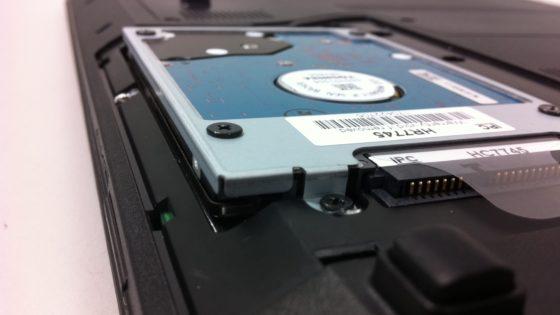
Einbau einer zweiten Festplatte
Zweite Festplatte gefällig? Hier erfahren Sie, wie Sie diese mit einem Festplatten Einbaurahmen ganz einfach in Ihr Laptop einbauen können.

Fujitsu Festplatten Einbaurahmen
Mehr Speicherplatz? Mit diesem Festplatten Einbaurahmen von Fujitsu Siemens können Sie ganz einfach eine Festplatte anstelle eines optischen Laufwerks einbauen.
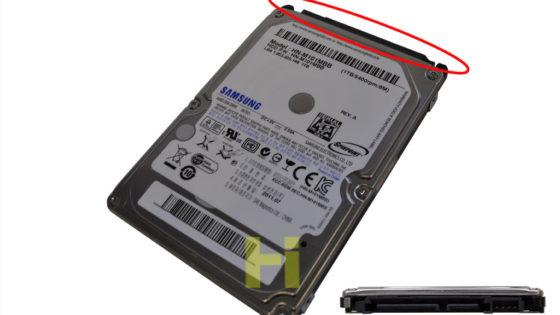
Acer nachrüsten mit zweiter Festplatte
Das Video zeigt Schritt-für-Schritt, wie Sie mit einem Festplatten Einbaurahmen eine zweite Festplatte in Ihr Acer Aspire 7745G einbauen können.
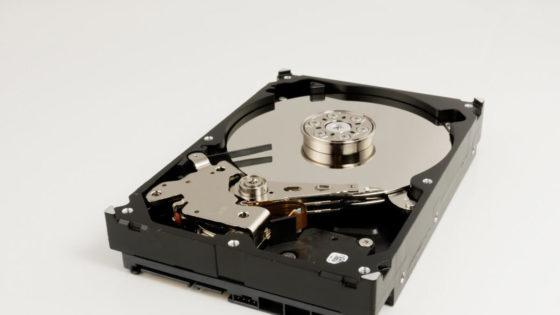
Was ist eine SED Festplatte?
Mit einer stets steigenden Zahl an Viren und Trojaner, scheint es einem, als könnte man nie genug Sicherheitsmaßnahmen ergreifen. SEDs sind daher eine sinnvolle Maßnahme für die eigene IT Sicherheit.