Disques durs pour ordinateurs portables, SSD et SSHD
Pourquoi acheter le nouveau disque dur d'IPC-Computer ?
- Qualité originale - s'adapte parfaitement à votre ordinateur portable
- Nouveau maintenant! Nos SSD de la nouvelle marque Asus JoGeek
- Distributeur officiel de pièces détachées de nombreux fabricants d'ordinateurs portables
- Meilleurs prix - livraison rapide
- Échange de disques durs dans notre atelier de réparation d'ordinateurs portables
- Assistance gratuite sur le thème de l'installation du disque dur

Trouver les disques durs appropriés par le modèle ou les caractéristiques
HP HPM1-691790-001 HDD 1TB WD XL1000S SATA6G 512e

plus frais d'expédition
HP HPM1-691790-002 HDD 1TB WD XL1000B SATA 6G512e
plus frais d'expédition
HP HPM1-691790-003 HDD 1TB WD XL1000B SATA 6G 512
plus frais d'expédition
HP HPM1-691915-001 HDD 500GB 5400RPM 7MM WD MN500
plus frais d'expédition
HP HPM1-691918-001 HDD500GB5400RPM7MMSEAGATE YARR
plus frais d'expédition
HP HPM1-691918-002 HDD 500GB 5400RPM 7MM SGT YARR
plus frais d'expédition
HP HPM1-691918-003 HDD 500G 5400RPM 7MM SGT YARRA
plus frais d'expédition
HP HPM1-692481-005 HDD 500GB 2 5 HGST Jaguar C7 S
plus frais d'expédition
HP HPM1-692483-004 HDD 500GB 2 5 HIT JAGUAR C7 SE
plus frais d'expédition
HP HPM1-692483-005 HDD 500GB 2 5 HGST JAGUAR C7 S
plus frais d'expédition
HP HPM1-692483-006 HDD 500GB 2 5 HGST JagC7 SED S
plus frais d'expédition
HP HPM1-697243-001 HDD 500G 5400RPM 7MM TSB AQUA
plus frais d'expédition
HP HPM1-697243-002 HDD 500GB 5400RPM 7MM TSB AQUA
plus frais d'expédition
HP HPM1-697243-003 HDD 500GB 5400RPM 7MM TSB AQUA
plus frais d'expédition
HP HPM1-697243-004 HDD 500GB 5400RPM 7MM TSB AQUA
plus frais d'expédition
HP HPM1-697243-005 HDD 500GB 5400RPM 7MM TSB AQUA
plus frais d'expédition
HP HPM1-801075-002 M 2 2280 SM951 256GB NVME PCIE
plus frais d'expédition
HP HPM1-801645-001 SSD PM871128GBSATA 32 5
plus frais d'expédition
HP HPM1-801648-001 M 2 2280 S3 PM871 128GB SATA 3
plus frais d'expédition
HP HPM1-801649-001 M 2 2280 S3 PM871 256GB SATA 3
plus frais d'expédition
Les disques durs les plus achetés
Crucial BX500 CT1000BX500SSD1 SSD 1TB (2,5 pouces / 6,4 cm)
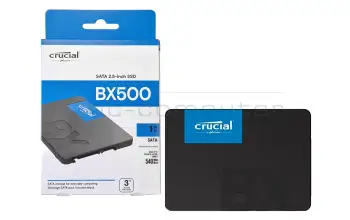
plus frais d'expédition
Crucial BX500 CT500BX500SSD1 SSD 500GB (2,5 pouces / 6,4 cm)
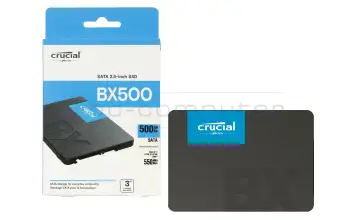
plus frais d'expédition
Samsung 990 EVO Plus MZ-V9S1T0BW PCIe NVMe SSD 1TB (M.2 22 x 80 mm)
plus frais d'expédition
Samsung 870 QVO MZ-77Q2T0BW SSD 2TB (2,5 pouces / 6,4 cm)
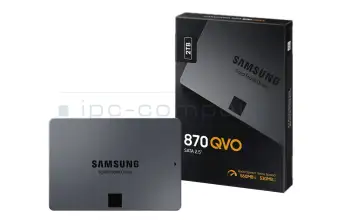
plus frais d'expédition
Seagate BarraCuda ST2000LM015 HDD 2TB (2,5 pouces / 6,4 cm)
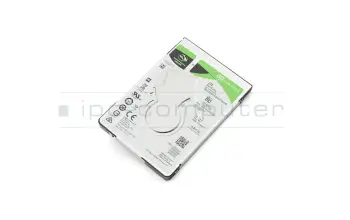
plus frais d'expédition
Substitut pour Asus 03B03-00373700 PCIe NVMe SSD 512GB (M.2 22 x 30 mm)
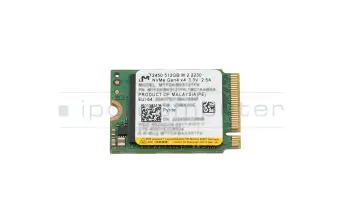
plus frais d'expédition
TRANSCEND 825S TS1TMTS825S SSD 1TB (M.2 22 x 80 mm)
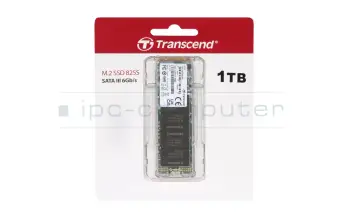
plus frais d'expédition
TRANSCEND 400S TS512GMTE400S PCIe NVMe SSD 512GB (M.2 22 x 42 mm)
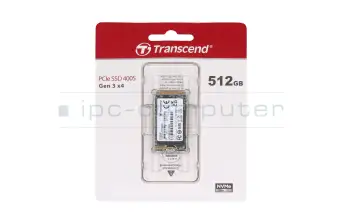
plus frais d'expédition
ADATA SU650 ASU650SS-512GT-R SSD 512GB (2,5 pouces / 6,4 cm)
plus frais d'expédition
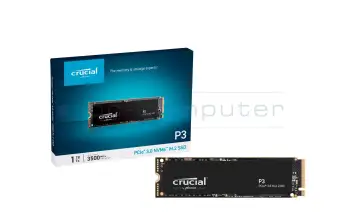
Crucial P3 CT1000P3SSD8 PCIe NVMe SSD 1TB (M.2 22 x 80 mm)
plus frais d'expédition
Les derniers cadres de montage et adaptateurs dans notre assortiment
Crucial BX500 CT1000BX500SSD1 SSD 1TB (2,5 pouces / 6,4 cm)
plus frais d'expédition
Crucial BX500 CT1050MX300SSD1 SSD 1TB (2,5 pouces / 6,4 cm)
plus frais d'expédition
Western Digital SA510 WDS500G3B0B-00AXS0 SSD 500GB (M.2 22 x 80 mm)
plus frais d'expédition
Crucial BX500 CT500BX500SSD1 SSD 500GB (2,5 pouces / 6,4 cm)
plus frais d'expédition
Crucial BX500 2408E899E794 SSD 500GB (2,5 pouces / 6,4 cm)
plus frais d'expédition
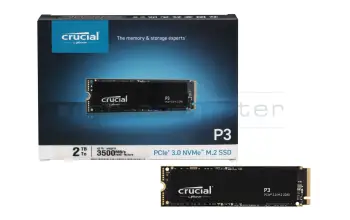
Crucial P3 CT2000P3SSD8 PCIe NVMe SSD 2TB (M.2 22 x 80 mm)
plus frais d'expédition
Crucial P3 CT2000P3SSD801 PCIe NVMe SSD 2TB (M.2 22 x 80 mm)
plus frais d'expédition
Alternative pour Samsung 990EVO PCIe NVMe SSD 2TB (M.2 22 x 80 mm)
plus frais d'expédition
Alternative pour Samsung MZ-V9S2T0 PCIe NVMe SSD 2TB (M.2 22 x 80 mm)
plus frais d'expédition
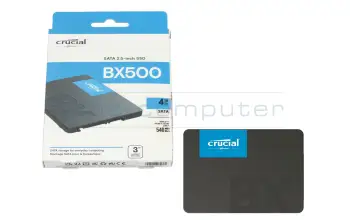
Crucial BX500 CT4000BX500SSD1 SSD 4TB (2,5 pouces / 6,4 cm)
plus frais d'expédition
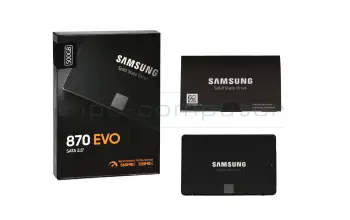
Samsung 990 EVO Plus MZ-V9S1T0BW PCIe NVMe SSD 1TB (M.2 22 x 80 mm)
plus frais d'expédition
Samsung 870 QVO MZ-77Q2T0BW SSD 2TB (2,5 pouces / 6,4 cm)
plus frais d'expédition
Seagate BarraCuda 2E8174-500 HDD 2TB (2,5 pouces / 6,4 cm)
plus frais d'expédition
Seagate BarraCuda ST2000LM015 HDD 2TB (2,5 pouces / 6,4 cm)
plus frais d'expédition
Substitut pour Lenovo 01LX024 HDD 2TB (2,5 pouces / 6,4 cm)
plus frais d'expédition
Substitut pour Asus 19201-41810200 HDD 2TB (2,5 pouces / 6,4 cm)
plus frais d'expédition
Substitut pour Fujitsu 38060085 HDD 2TB (2,5 pouces / 6,4 cm)
plus frais d'expédition
Substitut pour HP 929167-850 HDD 2TB (2,5 pouces / 6,4 cm)
plus frais d'expédition
Substitut pour Fujitsu CA08226-E978 HDD 2TB (2,5 pouces / 6,4 cm)
plus frais d'expédition
Substitut pour Fujitsu FUJ:CA08226-E978 HDD 2TB (2,5 pouces / 6,4 cm)
plus frais d'expédition
Substitut pour Acer KH.02K01.037 HDD 2TB (2,5 pouces / 6,4 cm)
plus frais d'expédition
Substitut pour Toshiba P000673100 HDD 2TB (2,5 pouces / 6,4 cm)
plus frais d'expédition
Substitut pour MSI S71-24A2508-S70 HDD 2TB (2,5 pouces / 6,4 cm)
plus frais d'expédition
Alternative pour Western Digital WD20SPZX HDD 2TB (2,5 pouces / 6,4 cm)
plus frais d'expédition
Qu'est-ce qu'un disque dur ?
Le disque dur est souvent appelé familièrement la mémoire de l'ordinateur portable. Il stocke des programmes et d'autres fichiers. Aujourd'hui, on distingue deux technologies principales : le disque dur classique (Hard Disk Drive) et le SSD moderne (Solid State Drive).
Le disque dur est constitué de disques magnétiques rotatifs et d'une tête de lecture. Vous obtenez ainsi beaucoup d'espace de stockage à un prix raisonnable. Bien qu'elle soit très sensible aux chocs ou à un mauvais positionnement et qu'elle doive donc être manipulée avec précaution, elle présente le grand avantage de pouvoir souvent récupérer des données apparemment perdues.
Le SSD fonctionne comme une clé USB, il est constitué de ce qu'on appelle une mémoire flash. L'absence de pièces mécaniques le rend beaucoup plus silencieux et plus résistant aux chocs que le disque dur. Il est également plus léger et fonctionne beaucoup plus rapidement, ce qui le rend particulièrement adapté aux appareils mobiles et au secteur des jeux. Les nombreux avantages ont bien sûr leur prix, le coût par Go est beaucoup plus élevé que celui du disque dur. Dans l'ensemble, cependant, on peut dire que l'installation d'un SSD est certainement utile si vous voulez augmenter la vitesse et les performances de votre ordinateur portable.
La SSHD est une combinaison de HDD et de SSD. Ce disque dur hybride combine la technologie de disque magnétique du HDD avec la mémoire flash du SSD. Il a donc une capacité de stockage considérable, mais fonctionne beaucoup plus vite que le disque dur classique.
| HDD (Hard Disk Drive) | SSD (Solid-State-Drive) | SSD M.2 | SSD M.2 PCIe | |
|---|---|---|---|---|
| Vorschaubild |  |
|  |  |
| Schnittstelle | S-ATA | S-ATA | S-ATA | PCIe 3.0 |
| Protokoll | AHCI | AHCI | AHCI | NVMe |
| Leserate | ca. 133 MB/s | ca. 550 MB/s | ca. 560 MB/s | ca. 3.500 MB/s |
| Schreibrate | ca. 132 MB/s | ca. 520 MB/s | ca. 530 MB/s | ca. 3.300 MB/s |
| Preis | günstig | normal | teuer | sehr teuer |
| Speicherkapazität | bis zu 18 TB | bis zu 4 TB | bis zu 8 TB | bis zu 8 TB |
| Stoßresistenz | weniger robust | robust | robust | robust |
| Lautstärke | laut | leise | leise | leise |
| Stromverbrauch | hoch | gering | gering | gering |
| Langlebigkeit | 3-5 Jahre | bis zu 10 Jahre | bis zu 10 Jahre | bis zu 10 Jahre |
| Datenwiederherstellung | einfach | schwierig | schwierig | schwierig |

De quoi dois-je tenir compte lors de l'achat d'un disque dur ?
Le nouveau disque dur doit correspondre à l'ancien, tant dans son type d'interface que dans sa conception. Le type d'interface est principalement différencié entre SATA et SAS, seuls les disques durs SATA étant installés dans les ordinateurs portables. Ceux-ci sont à nouveau disponibles en plusieurs versions. Le dessin, ou aussi appelé facteur de forme, doit également être pris en compte. Dans les ordinateurs fixes, des disques durs de 3,5 pouces sont installés, alors que les ordinateurs portables d'aujourd'hui contiennent principalement des disques durs de 2,5 pouces ou M.2.
Vous ne savez pas quel disque dur convient à votre ordinateur portable ? Avec notre outil de recherche de disque dur, ce n'est pas un problème, il suffit d'entrer les valeurs respectives et vous obtiendrez le disque dur correspondant.
Interessante Beiträge Rund um das Thema Notebook Festplatten und SSD's
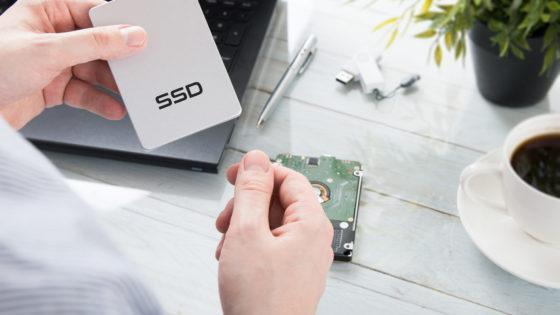
In einfachen Schritten zur richtigen Notebook Festplatte
Dieser Artikel soll Schritt für Schritt Hilfestellung anbieten um für den individuellen Laptop die dafür notwendigen Daten zu bestimmen und die genau passende neue Festplatte auszuwählen.
Schritt für Schritt Anleitung: Datenumzug auf neue SSD
Sie haben eine neue SSD in Ihrem Notebook eingebaut? Hier können Sie nachlesen, wie Sie Ihre Daten ganz einfach ohne Verluste übertragen.
Gelöschte Dateien von Festplatte/SSD wiederherstellen:
Daten gelöscht oder Speichermedium defekt? Hier erfährst du, wie du gelöschte Dateien von Festplatte, SD-Karte oder USB-Stick wiederherstellst.

Festplatte wird nicht angezeigt? - Daran kann es liegen
Die Notebook Festplatte wird im Bios nicht erkannt und das das Gerät lässt sich nicht mehr starten. Worin das Problem liegen könnte, erklären wir Ihnen in diesem Beitrag.
Welche Unterschiede gibt es bei M.2 SSD's?
Es gibt eine Vielzahl unterschiedlicher M.2 SSD's. Sie differenzieren sich in verschiedenen Punkten. In diesem Video zeigen wir Ihnen die verschiedenen Varianten.

JoGeek by Asus
JoGeek ist das neue Tochterunternehmen von Asus, welches universale Ersatzteile für Notebooks anbietet. Unsere 1. Wahl, wenn es um Upgrades in unserer hauseigenen Reparaturwerkstatt geht. Die M.2 und SATA SSD's überzeugen mit schnellerer Lese- und Schreibgeschwindigkeit.
Notebook Hard Drives / HDD FAQ
All important questions and answers surrounding hard drives
- What is S.M.A.R.T. and what is it for
To increase the reliability of hard drives and the data security hard drive manufacturers have developed the Self-Monitoring Analysis and Reporting Technology (S.M.A.R.T.). it can read important information about the drive like temperature, power-on time and read-/write errors.
- Why is the size of my harddrive that Windows reports less that what the manufacturer advertised
Harddrive manufacturers calculate the size using a base of one thousand. That means that 1 KB = 1000 Byte. However the more common calculation uses a base of 2 to the power of 10 or 1 Kb = 1024 Byte.
This small difference appears when going from Byte to KB, to MB and to GB that is why in the end there is a sizable difference between advertised and usable capacity.
- Sind die S-ATA Standards Kompatibel
Die S-ATA Standards sind untereinander kompatibel. Sie können z.B. eine S-ATA II Festplatte an einen S-ATA III Controller anschließen. Es gibt bei einigen Herstellern allerdings auch Ausnahmen, Notebookmodelle welche mit einem VIA-Controller ausgestattet sind wie z.B. das Fujitsu Amilo M 1437G unterstützen die verschiedenen Standards nicht.
Siehe auch FAQ Beitrag: Wo liegt der Unterschied zwischen P-ATA (IDE), S-ATA, S-ATA II, S-ATA III und SSD?
- What is the difference between 512n and 512e
On a hard drive there are so-called sectors. These are the smallest parts than can be read or written to the disk. Traditionally they were 512 Bytes in size. But this allows only so much data to be stored with a given number of sectors. That is why 4 Kilobyte sectors where introduced, these can store eight times the data of 512 Byte sectors. However, not every Operating System and every application were compatible with these larger sectors. This is why manufactures introduced emulated 512 Byte large sectaries (512e). With these the hard drive splits the four Kb sectors into eight 512 Byte sectors, so the OS thinks, that the hard drive has 512 Byte sectors. 512n stand for those drive which have native 512 Byte sectors.
- How can I format or partition a hard drive
You can use the disk management utility built into Windows 10.
- Hit the Windows key and type "Control Panel", then hit enter
- Left click on Administrative Tools
- Select Computer Management and then Disk Management.
- After a short loading time you will be shown all connected drive with their respective partitions.
- Right click on the unformatted drive and click format.
- Follow the wizard to complete the formatting process.


- Welche Festplatte kann ich in mein Notebook einbauen?
Welche SSD du in dein Laptop einbauen kannst, hängt im Wesentlichen von zwei Faktoren ab: der verfügbaren Schnittstelle und dem physisch vorhandenen Platz im Gehäuse.
1. Schnittstelle prüfen
Notebooks unterstützen in der Regel entweder- SATA‑SSDs (2,5 Zoll Formfaktor, meist etwas langsamer, aber sehr kompatibel), oder
- M.2‑SSDs (SATA oder PCIe NVMe), die direkt über die M.2‑Schnittstelle auf dem Mainboard angeschlossen werden und deutlich höhere Übertragungsraten ermöglichen.
Ob dein Gerät SATA oder M.2 — und bei M.2 welches Protokoll (NVMe oder SATA) — unterstützt, findest du in den Hersteller‑Spezifikationen des Notebooks (Handbuch, Website) oder über den IPC‑Computer Ersatzteilfinder heraus. Dort kannst du dein Modell eingeben und erhältst nur 100 % kompatible SSDs, die garantiert in dein Gerät passen.
2. Verfügbaren Platz prüfen
Einige Notebooks bieten zusätzlich zum Hauptlaufwerk einen zweiten M.2‑Slot oder einen freien SATA‑Anschluss, in dem du eine zusätzliche SSD einbauen kannst. Dieser freie Steckplatz ist je nach Modell unterschiedlich vorhanden – daher lohnt sich ein Blick ins Handbuch oder ein Blick ins Gerät selbst.3. Empfehlung zur SSD‑Auswahl
Für die meisten aktuellen Laptops sind M.2 2280‑NVMe‑SSDs die gängigste und leistungsstärkste Wahl. Ältere Geräte verwenden häufig SATA‑SSDs im 2,5‑Zoll‑Format.4. Einbau und Service
Im IPC‑Computer Shop findest du geprüfte, original‑kompatible SSDs mit optionalem professionellen Einbauservice. So bekommst du auf Wunsch nicht nur das passende Laufwerk, sondern auch den fachgerechten Einbau inklusive Funktionsprüfung – direkt durch die IPC‑Computer‑Fachwerkstatt. Du kannst den Einbau incl. der SSD direkt im Shop unter www.ipc-computer.de bestellen. Weiter Dienstleistungen: Link zur Preisliste. - Welche Software-Tools solltest du kennen, wenn Du Dir einen neue SSD kaufen möchtest?
Wenn du dir eine neue, größere SSD zulegen möchtest, gibt es einige kostenfreie Tools, die dir beim Klonen, Prüfen und Verwalten deiner Laufwerke nützlich sind. Diese Programme helfen dir, Daten sicher zu übertragen, die Leistung der neuen SSD zu kontrollieren und das Maximum aus deiner Hardware herauszuholen.
1. Macrium Reflect Free
Ein sehr beliebtes Tool zum Klonen von SSDs. Es erstellt 1:1‑Abbilder deines alten Laufwerks und überträgt sie direkt auf die neue SSD – ideal, wenn du dein System ohne Neuinstallation umziehen möchtest.2. AOMEI Backupper Standard oder EaseUS Todo Backup Free
Diese Programme bieten ebenfalls kostenlose Klon‑ und Backup‑Funktionen und sind einfach zu bedienen. Damit kannst du dein aktuelles System sichern, bevor du die neue SSD einbaust.3. CrystalDiskInfo
Ein Klassiker zur Zustandsüberwachung deiner SSD. Es zeigt Temperatur, Betriebsstunden und die wichtigsten SMART‑Werte an – so erkennst du frühzeitig, wenn sich ein Defekt ankündigt.4. Hersteller‑Tools (z. B. Samsung Magician, Crucial Storage Executive, WD Dashboard)
Diese Tools sind kostenlos und speziell auf die jeweiligen SSD‑Modelle abgestimmt. Sie ermöglichen Firmware‑Updates, Benchmark‑Tests und Zustandsprüfungen. Gerade nach der Installation deiner neuen SSD sind sie nützlich, um Leistung und Lebensdauer zu optimieren.5. Windows‑eigene Datenträgerverwaltung
Damit kannst du Partitionen auf deiner neuen SSD bequem anpassen oder formatieren, wenn du das Laufwerk frisch einrichtest.Tipp: Sichere deine Daten vor jeder Änderung zusätzlich auf einer externen Festplatte oder in der Cloud. So bist du im Fall eines Fehlers immer auf der sicheren Seite.
Im IPC‑Computer Shop kannst du über dein Notebook‑Modell direkt die passende SSD auswählen und bestellen. Und falls du dir den Umzug der Daten oder den Einbau nicht selbst zutraust, übernimmt unsere Fachwerkstatt den professionellen SSD‑Tausch inklusive Datenübernahme – aktuell für 99 € inkl. MwSt in der Preisliste.
- Why doesn't my new hard drive show up in the operating system
New hard drives are often delivered unpartitioned, the user can decide for himself what kind of file system he would like to use. The Windows Explorer will not recognize these and won’t display them. You can take a look at our FAQ “How can I format or partition a hard drive?” to partition and be able to use your new drive.
See also: - What file system should I use
The most used file systems are:
- FAT 16, FAT 32 (Windows 95, 98, ME, XP)
- NTFS (Windows NT, 2000, XP, Vista, 7, 8, 8.1)
- EXT 2 (Linux)
- HFS, HFS+ (Apple Macintosh)
However nowadays most Windows computers use NTFS for their hard drives
The various FAT formats are only used in USB sticks or memory cards.
- How can I make sure my data is safe and prevent data loss
Just like detailed in the FAQ “What is S.M.A.R.T. and what is it for?” S.M.A.R.T. is an industry standard for the constant monitoring of disk parameters like temperature and read- or write errors. With its help errors can be detected before they happen, the data can be backed up and the drive replaced.
However even with careful monitoring the death of a hard drive can always happen unexpectedly. This is why it is very important to back up important data like invoices or family photos to an external hard drive or the cloud. This should be done in regular intervals so that you always have a complete backup of your data.
If your hard drive breaks a data recovery is expensive and time consuming and not always possible.
See also:
The operation in a notebook does not prolong the life of a hard drive. First this is because of the shock and vibrations when moving the device. This can cause the read/write head to crash into the platters in the wort case breaking this head. Move your device carefully while it is on, or even better avoid moving it at all. Secondly, due to the compact formfactor notebooks usually get very warm. That is why putting your device on a notebook cooler can improve the performance and lifespan of your device. Modern solid-state drives are a lot more resilient to shock and heat and therefore more durable, than traditional hard drives. - Wie öffne ich mein Laptop fachgerecht – und worauf muss ich beim SSD Tausch achten?
Das Öffnen eines Laptops erfordert Sorgfalt, das richtige Werkzeug und etwas Erfahrung.
Grundregeln beim Öffnen:
- Gerät vollständig vom Strom trennen und, falls möglich, Akku entfernen bzw. stromlos schalten.
- Geeignetes Feinmechanik‑Werkzeug und ESD‑Schutz verwenden.
- Gehäuseschrauben systematisch lösen und Bodenabdeckung vorsichtig mit einem Kunststoff‑Tool abheben.
- Keine Gewalt anwenden – viele Geräte besitzen versteckte Schrauben unter Gummifüßen oder Aufklebern.
In unserer Reihe „Mein Laptop von innen“ zeigen wir anschaulich, wie verschiedene Notebook‑Modelle aufgebaut sind und welche Schritte nötig sind, um sie sicher zu öffnen.
Die Videos helfen dir, die Bauweise unterschiedlicher Marken (z. B. HP, Lenovo, Dell, Acer) besser zu verstehen und zeigen, wo sich Akku, Mainboard oder RAM befinden.
Wenn du dir beim Öffnen unsicher bist oder fest verbaute Komponenten besitzt, übernehmen unsere Techniker in der Werkstatt den sicheren Ausbau und die Reparatur. - How do I swap a hard drive and what do I have to watch out for
When swapping out your hard drive please also attach the mounting bracket from the old one to the new one. You also have to be extremely careful not to damage any of the plugs and connectors on the mainboard or the drive.

- Wie wähle ich die passende M.2‑SSD für mein Notebook aus, um Kompatibilitätsprobleme durch unterschiedliche Bauformen zu vermeiden?
Ja, das Thema der unterschiedlichen Längen bei M.2‑SSDs ist nach wie vor aktuell und kann beim Kauf leicht zu Problemen führen, wenn man es nicht beachtet.
1. Verschiedene Baugrößen
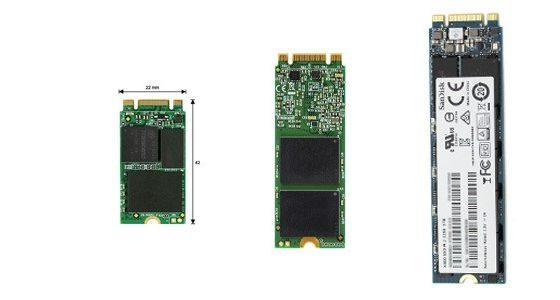
M.2‑SSDs gibt es in mehreren Längen – die gängigsten sind 2242, 2260, 2280 und 22110. Diese Zahlen stehen für Breite × Länge in Millimetern (z. B. 22 mm breit und 80 mm lang = M.2 2280). Die Länge bestimmt, ob die SSD physisch in den Slot deines Notebooks passt.2. Kompatibilitätsprobleme
Nicht jeder M.2‑Slot unterstützt alle Längen. Viele Notebooks bieten nur Platz für 2280‑Modelle, manche Ultrabooks dagegen nur 2242 oder 2260. Wenn die SSD zu lang ist, lässt sie sich gar nicht einbauen – ist sie kürzer, kann sie mechanisch locker sitzen, wenn keine passende Halterung vorhanden ist.3. Tipp zur Kontrolle
Bevor du eine neue SSD bestellst, solltest du im Gerät nachsehen oder im Handbuch prüfen, welche M.2‑Länge und Schnittstelle (SATA oder NVMe) unterstützt wird. Wenn du unsicher bist, hilft der Ersatzteil‑Finder im IPC‑Computer Shop: Dort kannst du über dein Laptop‑Modell gezielt alle kompatiblen M.2‑SSDs anzeigen und direkt bestellen.4. Praktisch beim Einbau
In modernen Notebooks sind oft mehrere Bohrungen für unterschiedliche Längen vorgesehen. Achte beim Einsetzen auf die richtige Schraubenposition und setze das Laufwerk im flachen Winkel ein – so vermeidest du Beschädigungen am Anschluss.


- What is the difference between P-ATA (IDE), S-ATA, S-ATA II and S-ATA III
The difference is in the type of connection and its speed.
- P-ATA/IDE (IDE 100/133) Parallel connection with transfer rates of up to 1 Gbit/s or 100 MB/s to 133 MB/s.
- S-ATA (SATA 150) Serial connection with transfer rates of up to 1.5 Gbit/s or 150 MB/s.
- S-ATA II (SATA 300) Serial connection with transfer rates of up to 3.0 Gbit/s or 300 MB/s.
- S-ATA III (SATA Revision 3.0) Serial connection with transfer rates of up to 6.0 Gbit/s or 600 MB/s.

